Media
Media consists of the images, video, recordings, and files that you upload and use in your site.
Media Library
The Media Library allows you to edit, view, and delete Media previously uploaded to your site. Multiple Media objects can be selected for deletion. Search and filtering ability is also provided to allow you to find the desired Media.
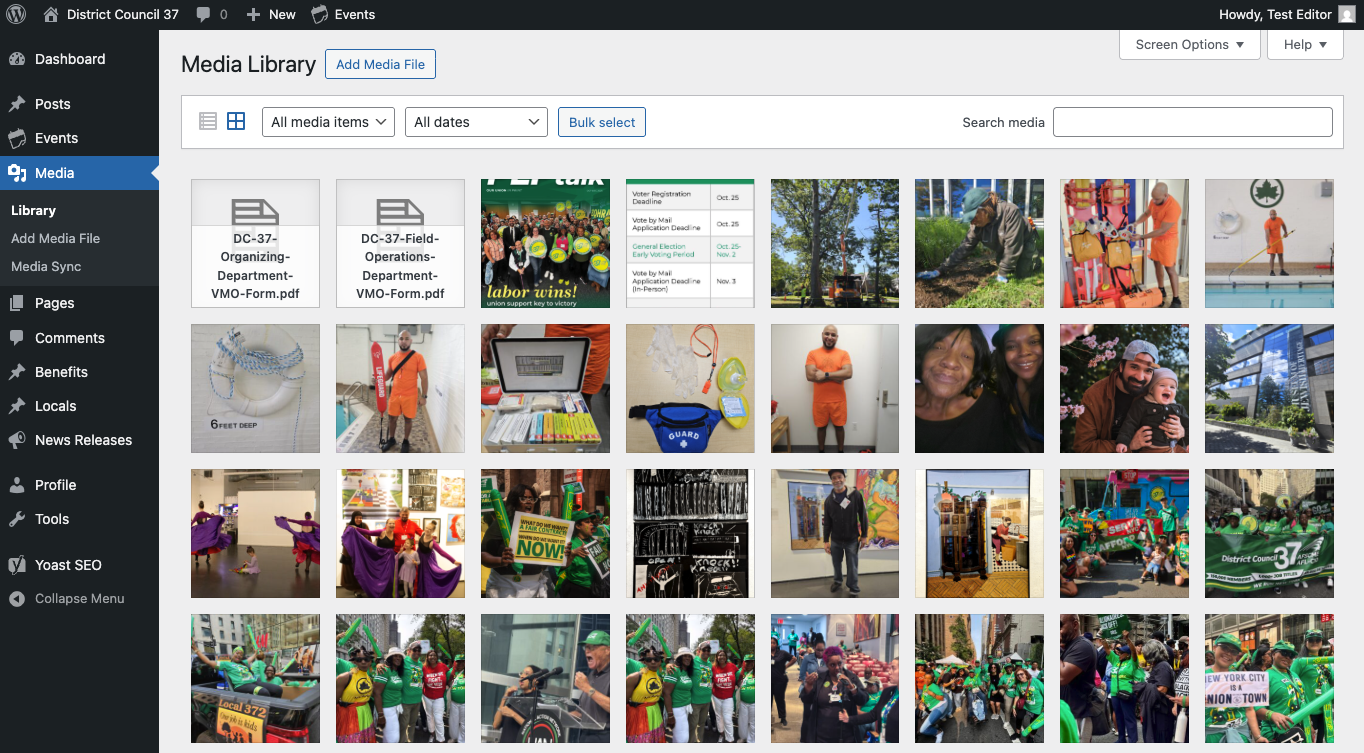
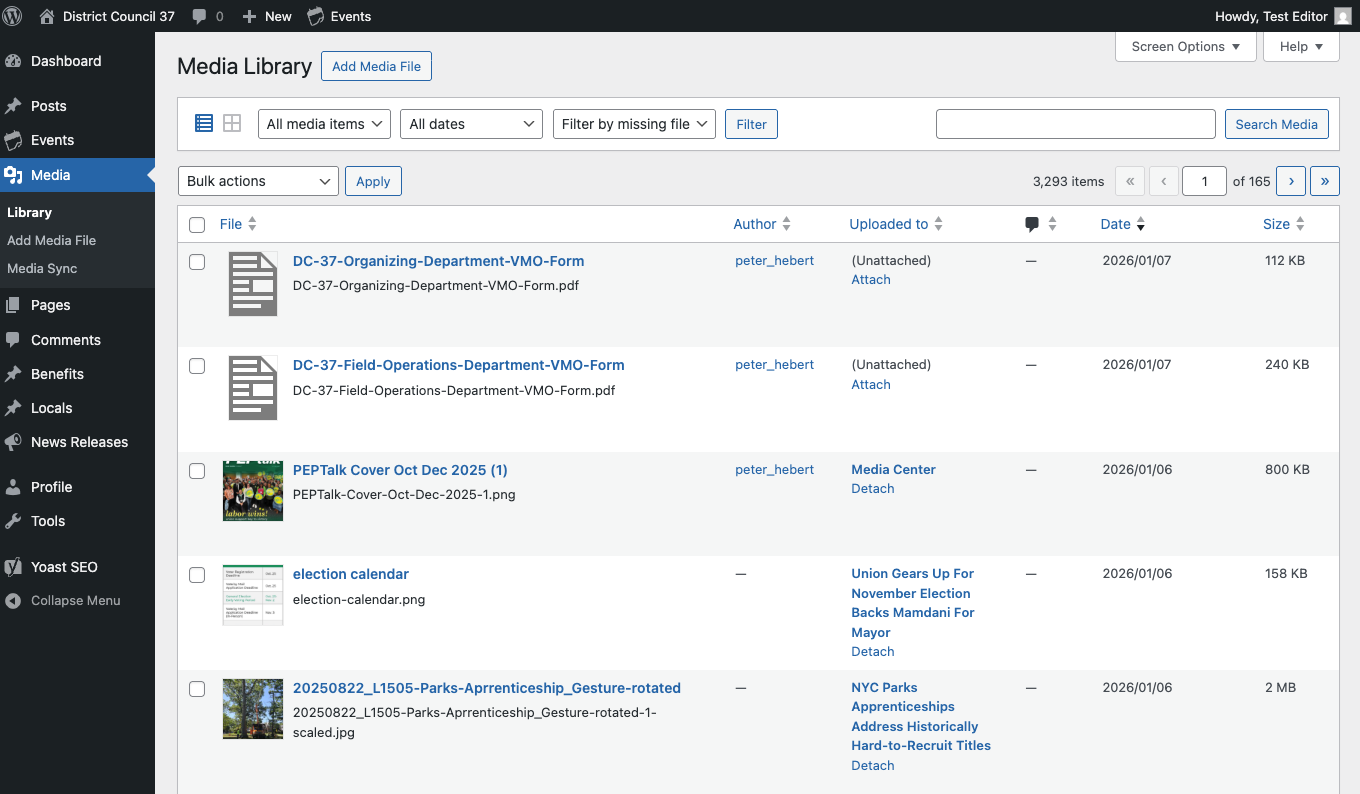
Media Library provides two type of views Grid and List. Switch between these views using the icons to the left above the screen.

Grid view
In the Grid View, thumbnails of your uploaded images, and icons for other media types, are arranged in the grid.
List view
In the List View, a table lists all of your Media, by row. The Media are listed with the newest uploaded Media first.
Read more: Media Library (WordPress documentation)
Media Types
The WordPress media library primarily supports four main categories of media types: Images, Documents, Audio, and Video.
Add New Media
Uploading media from your local computer into the Media Library is quite simple.
From the Media section of the admin, click "Add Media File"
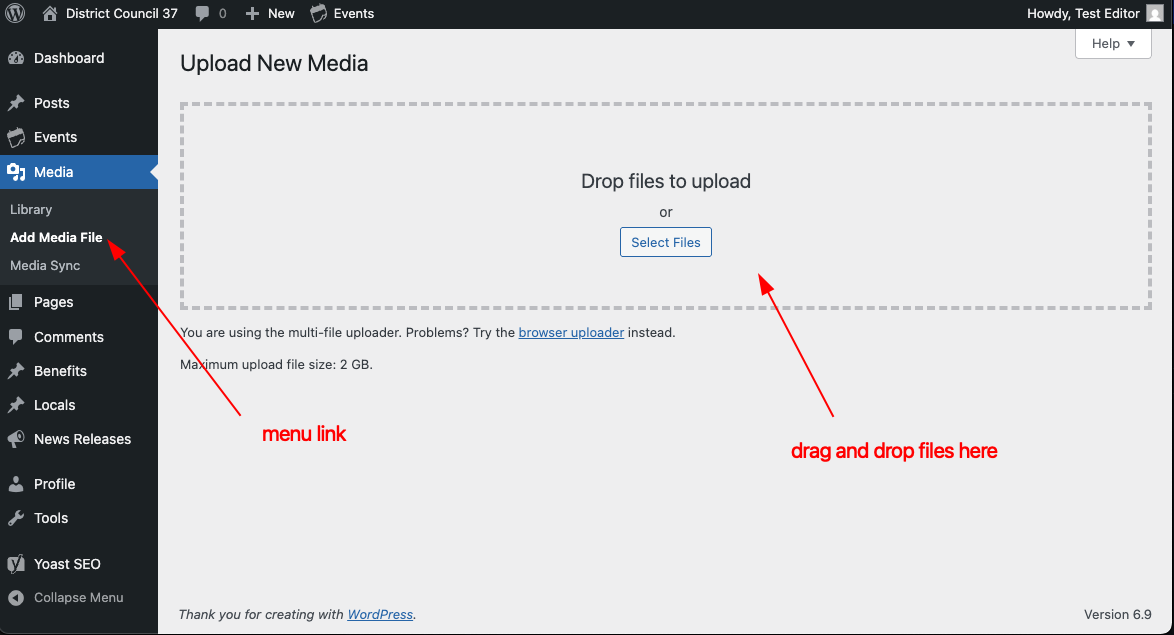
Or from the top toolbar, go to: + New > Media
Then you can drag and drop files from your desktop within the area marked with a dotted gray border.
Read more: Media Add New Screen (WordPress documentation)
Edit Media
To Edit media, click on the thumbnail in Grid view, or the file name in List view. This will open the Edit Media screen:
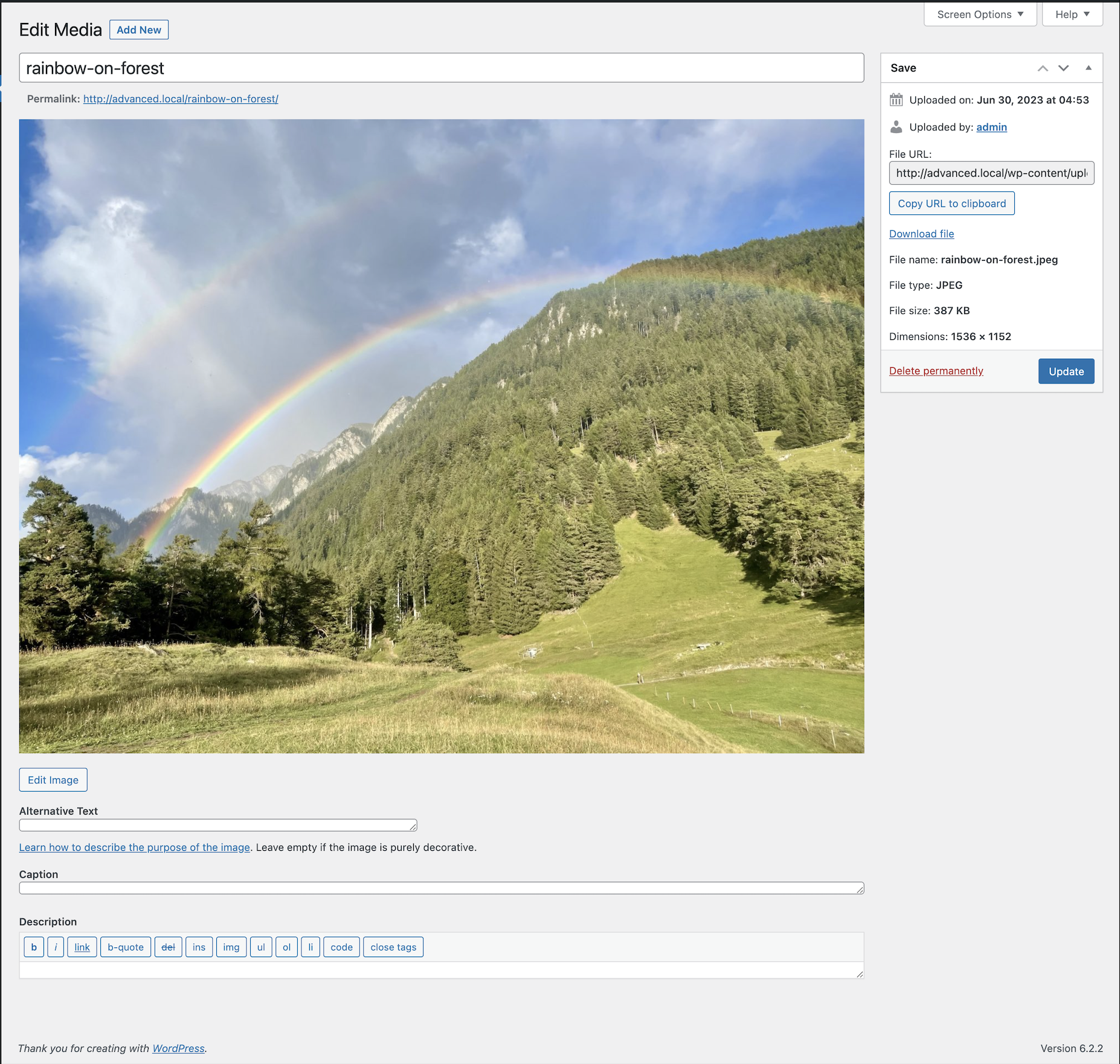
On the Edit Media screen, you can see and edit:
Title - The name of the media. Defaults to the filename when uploaded, but you can change it to something more memorable and descriptive. It is often used as the link text when you are linking to a document within text.
Edit image button - (Image files only) allows you to make edits such as rotate, scale, and crop.
Caption - A brief explanation of the media.
Alternate text - The alt text for the image, used to describe the media by screen readers. Used for accessibility.
Description - An explanation of this particular media.
File URL - Read only display of a direct link to the media file.
Copy URL to clipboard: - Click to copy the URL of the file you are editing into the clipboard.
Download file - Makes it easier for users to download their uploaded media by providing a download link on the attachment details screen and in the media modal.
Save meta box - Displays information about your media, such as the upload date, web address, file name, type, size, and dimensions. Also includes actions to Delete Permanently or Update any change you have made.
Read more: Edit Media - WordPress documentation
Using Media in your site content
- See: Inserting images into posts and pages using the block editor.
Image Sizes
WordPress allows you to select from some pre-defined image sizes when inserting images into your page. This allows you to just upload a high-res original image, and not have to worry about uploading multiple differently scaled copies of the same image depending on how big you want it to be displayed.
The available image sizes on the DC37 site are:
- Thumbnail - small hard crop square (160 x 160)
- Medium - 360 x 360, scaled to fit
- Large Thumbnail - larger hard crop square (480 x 480)
- Medium Large (3:2) - landscape ratio of 3:2 with hard crop (660 x 440)
- Large - 1024 x 1024, scaled to fit
- Extra Large - 1408 x 1408, scaled to fit
- Full Size - shows the full size image as uploaded