Getting Started
Login Screen
To get to the login screen, go to:
https://app.dc37-site-production.kube.v1.colab.coop/wp/wp-login.php
Post launch will be: https://dc37.net/wp/wp-login.php
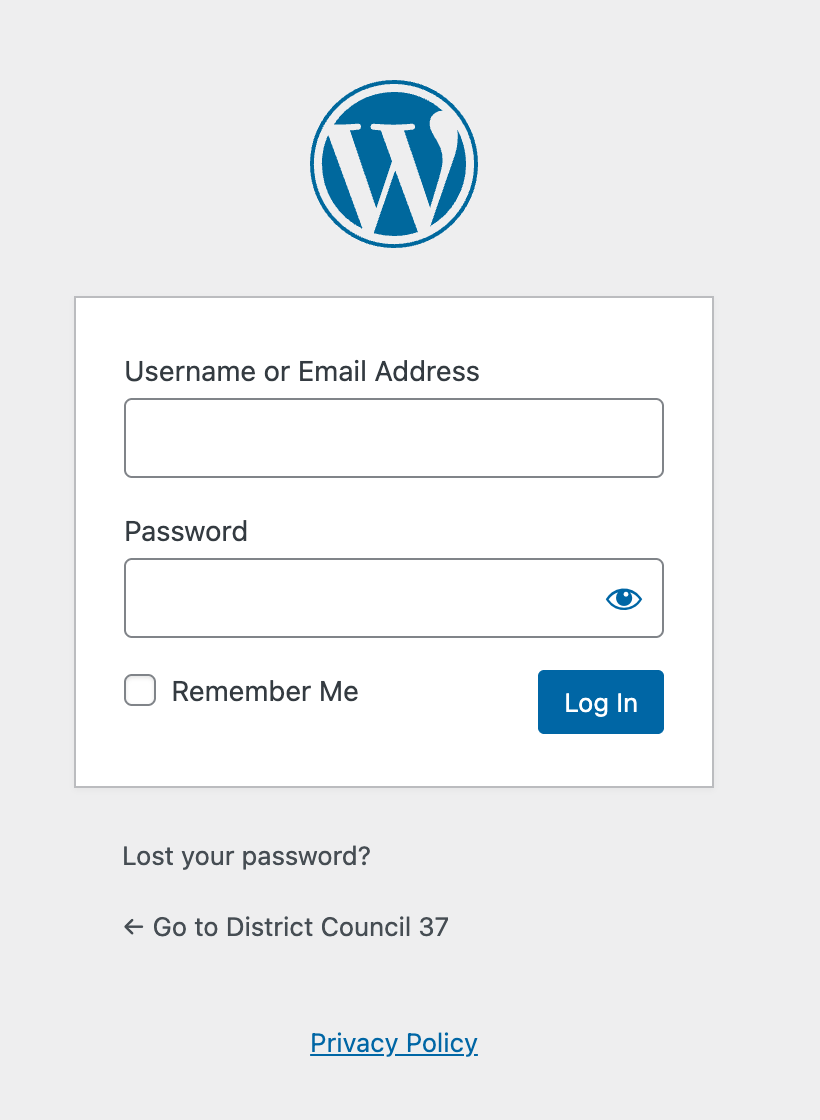
Enter your username (or email address) and password to log in.
Logging Out
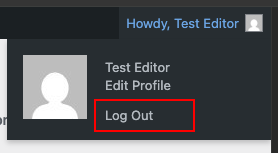
To log out of WordPress, go to your user profile icon in the top right of the toolbar. From the drop-down, choose Log Out.
Reset Your Password
In WordPress, there is more than one way to reset your password.
Forgotten Password
Generally, if you have forgotten your password, you will use the “Lost your password?” link on the main login page.
- Click on the “Lost your password?” link.
- You will be taken to a page to enter some details. Enter your username or the email address on file for that account.
- Wait happily as your new password is emailed to you.
- Once you get your new password, login to your profile page and change this password to something you can remember.
Change password
If you are already logged in and you want to change your password, for example as part of your security practice, you can do that from the User Profile screen
In the Edit User screen, scroll down to the Account Management section and click the Generate Password button.
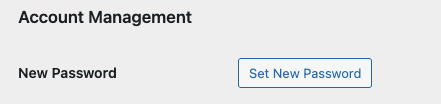
If you want to change the automatically generated password, you can overwrite it by typing a new password in the box provided. The strength box will show you how good (strong) your password is. You can also show and hide the text in the password field.
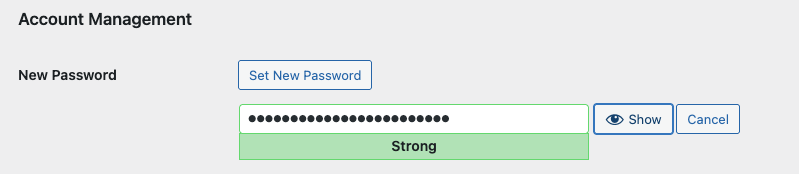
Click the Update Profile button at the end of the screen.
Your new password becomes active immediately.