Content Editing
The content of your website consists of the Pages, Posts, News Releases, and other types of content (known as Post Types in WordPress) that make up your web site.
This content can then also be organized using taxonomy - which includes categories, tags and other custom taxonomy vocabularies.
Read more about the content strucure for DC 37.
Your site can also contain various types of media such as images, video, audio, and documents. These are collectively known as Media in WordPress.
Read More about using Media in WordPress
View and Manage your Content
Each post type has its own section in the main navigation panel on the left of the admin dashboard.
You will see links for each post type, as well as the Media link that goes to the WordPress media Library.
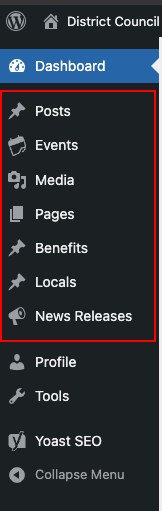
For instance, To view all the Pages in your site, Click Pages in the left sidebar. This will show the Pages screen with a list of all the pages you have in your site.
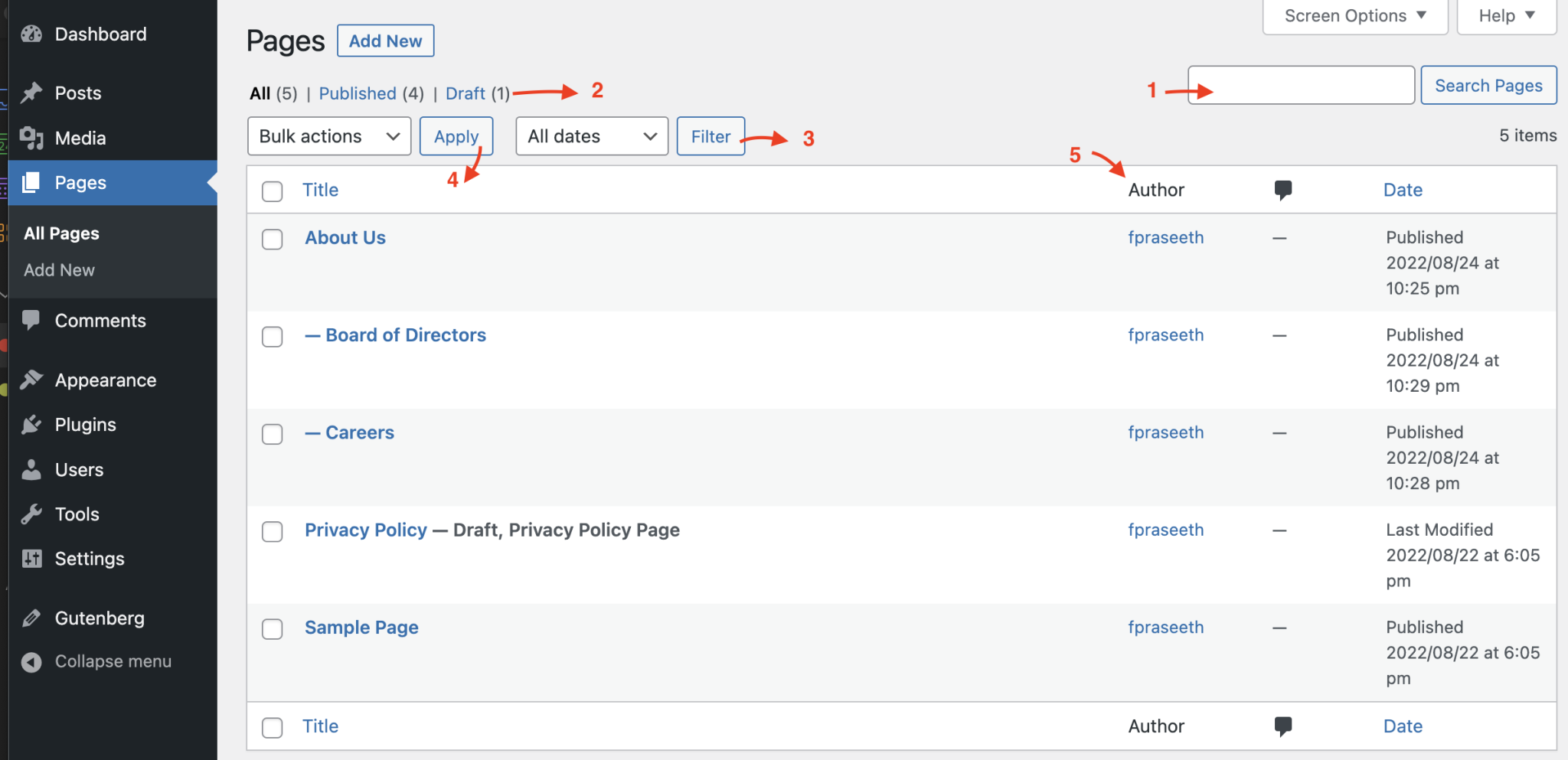
- You can easily search for a Page based on the Page Title.
- You can get a list of all the Published Pages or Draft Pages.
- You can filter Pages based on dates.
- You can perform Bulk actions > Edit or Move to Trash by selecting multiple Pages from the list. Select pages for bulk actions by selecting the corresponding checkbox at the start of each table row.
- You can sort the Pages list based on Title, Date, Author etc by clicking the Header columns.
Each post type (Posts, Benfits, Locals, etc) will have a similar section laid out in the same manner, for managing the content of that particular type.
Creating new content
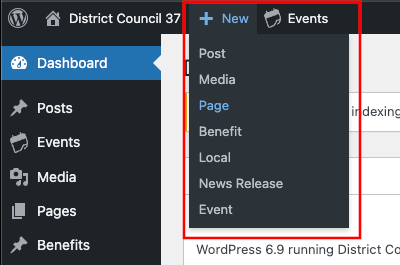
When you are in the administration dashboard, you can create new content from either the top toolbar, or the main navigation panel.
There are many different types of content that you can create. These content types are called Post Types in WordPress.
View the Post Types reference for DC37.
Page (example)
To create a new Page:
-
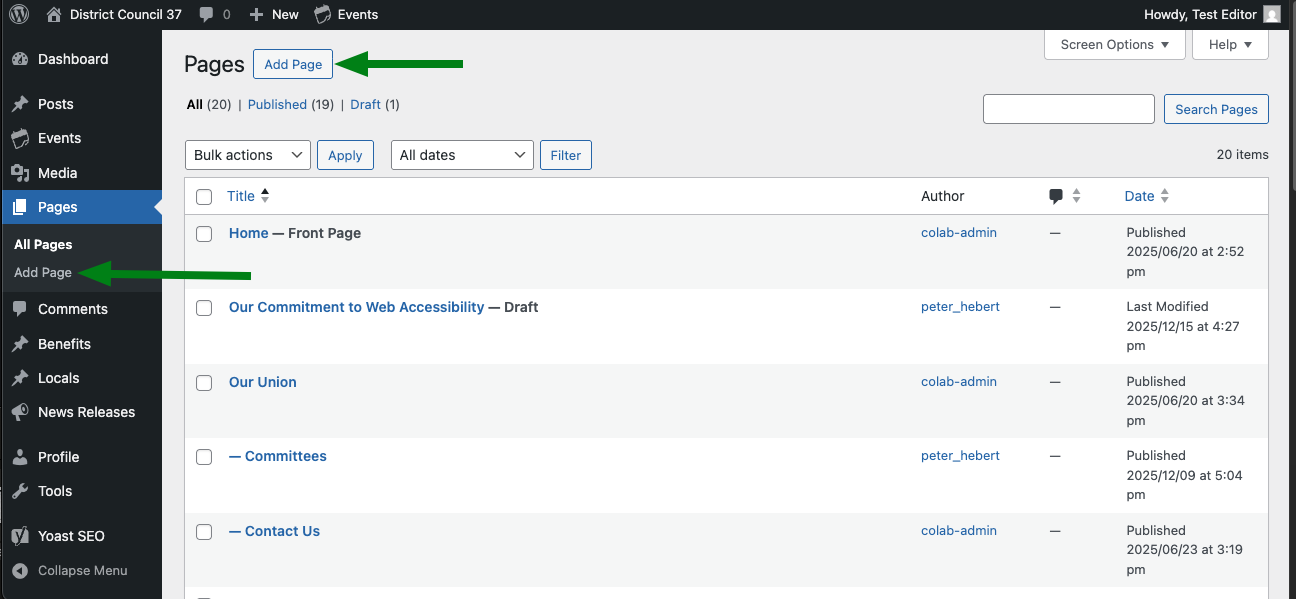
Click the Pages > Add Page in the left sidebar.
-
You can also click the Add Page button in the Pages screen.
Alternatively, you can also go to New in the top toolbar, and from the sub-menu, choose Page (or the name of whichever post type you wish to create).
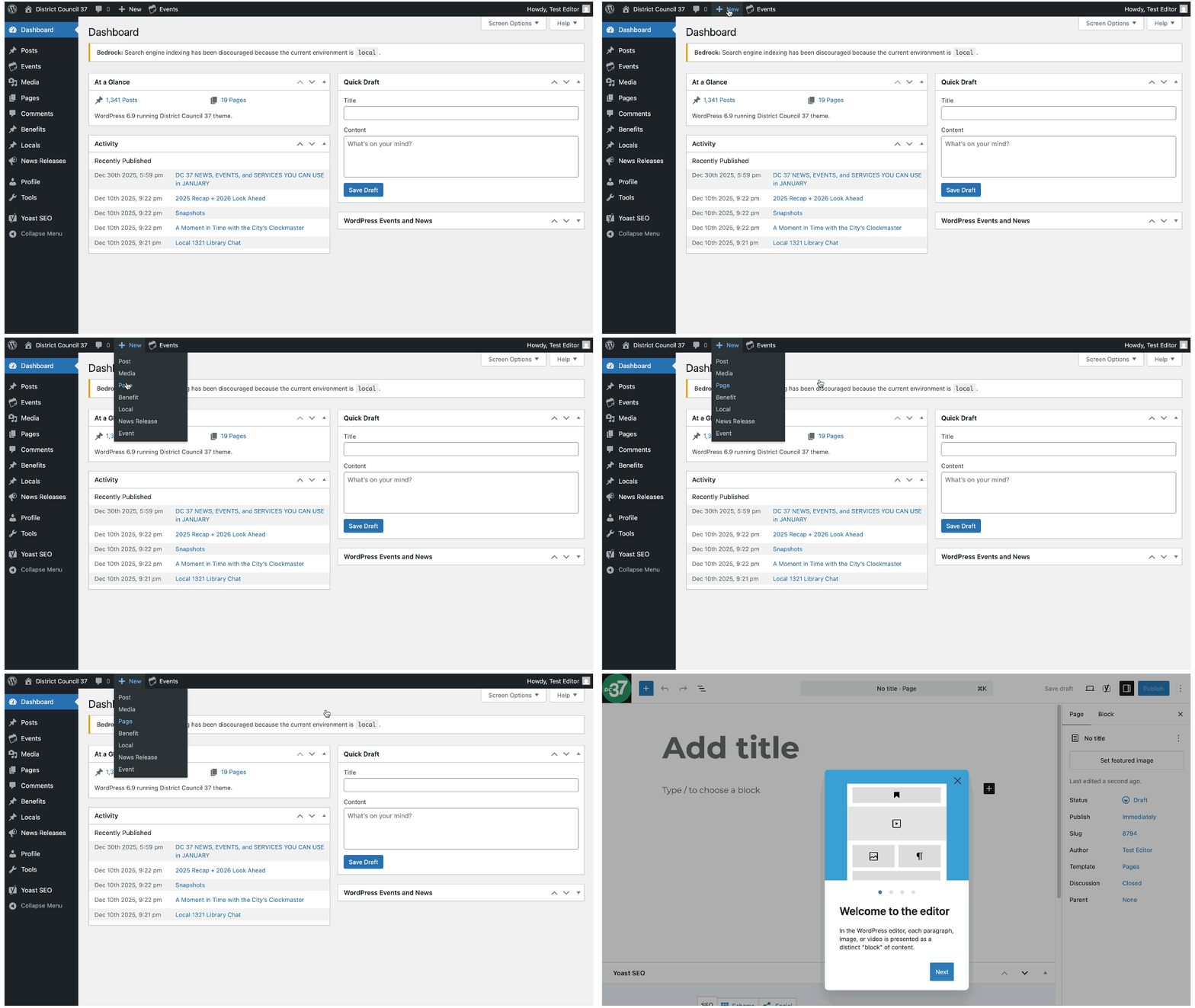
The process is the same for all post types - just go to the admin section for the post type you wish to create, or select the post type name from the top toolbar under + New: